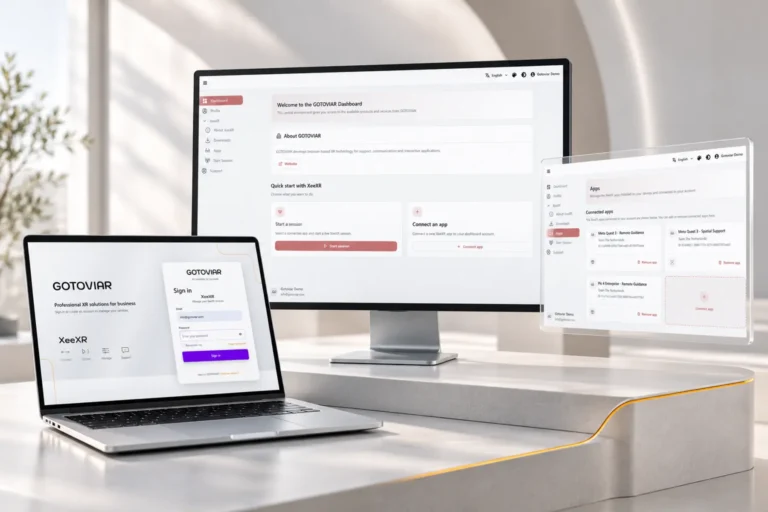

XeeXR Remote Guidance on SideQuest: refreshed design, simpler pairing
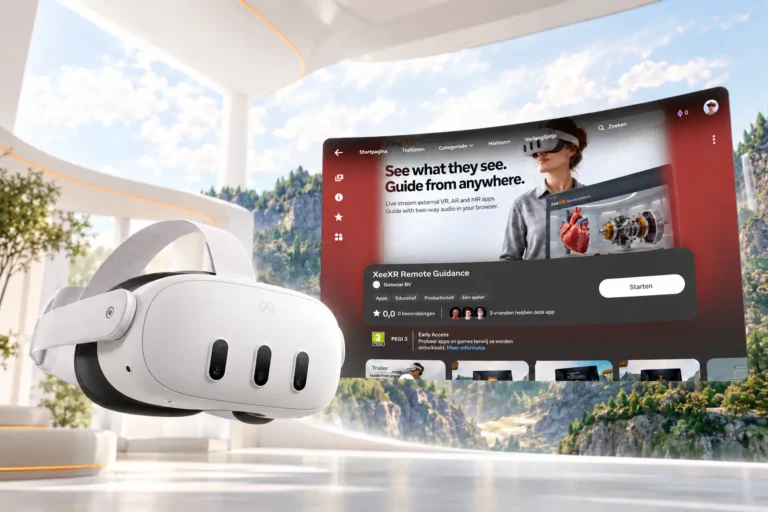
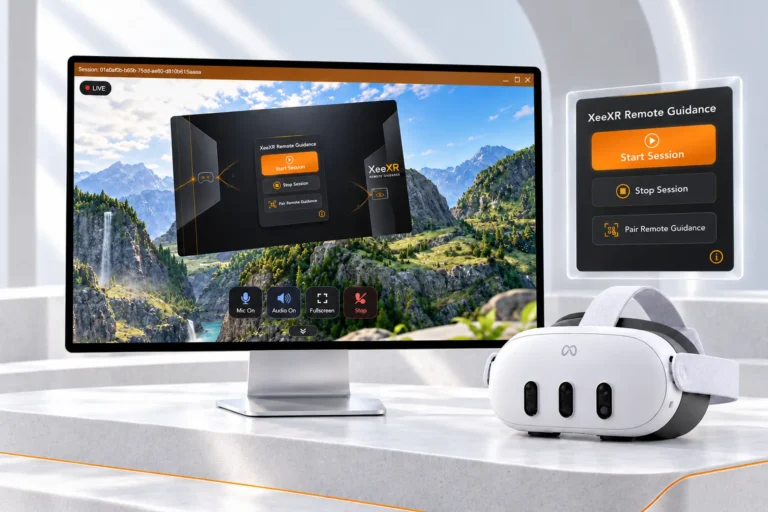
Using VR for training, demonstrations or simulations? The updated XeeXR Remote Guidance app is now also available on SideQuest. It lets a trainer or expert remotely view the headset experience live and communicate through two-way audio.
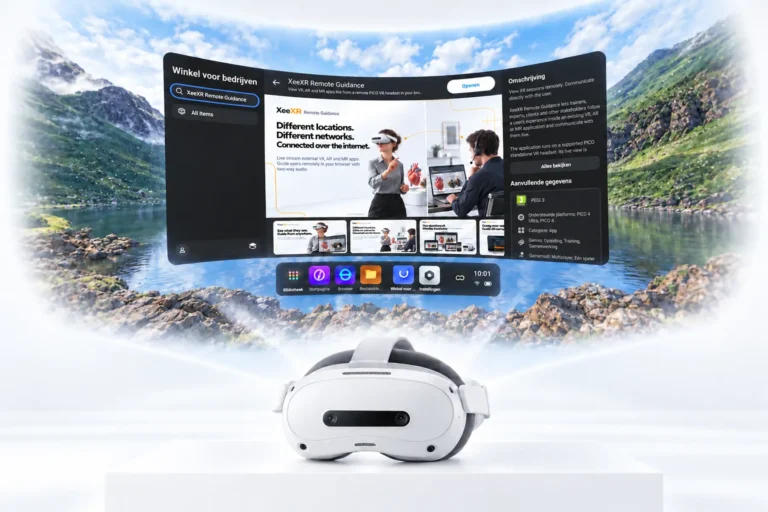
The app is available for Meta Quest 3, Meta Quest 3S and PICO 4 Enterprise.
Discover more about Remote Guidance
A familiar place to discover VR apps
SideQuest brings VR users and developers together. The platform helps you discover apps, games and new experiences and offers ways to install applications outside the standard headset store.
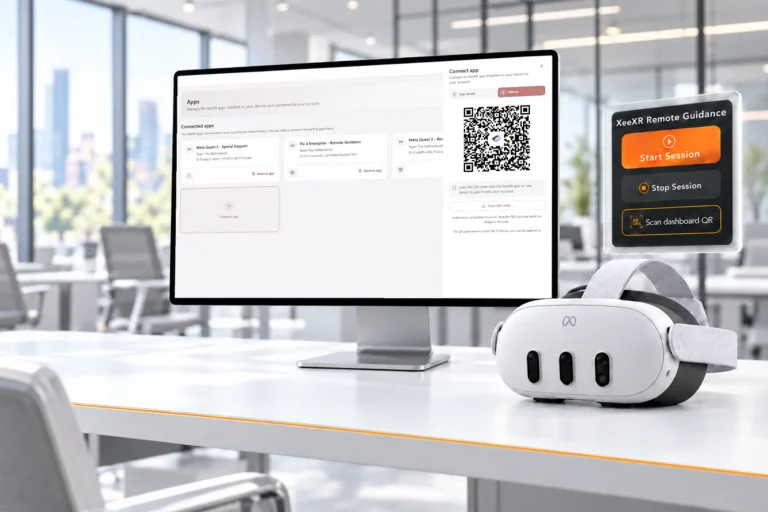
We’ve updated XeeXR Remote Guidance on SideQuest with all our recent app improvements. The design has been completely refreshed, while clearer instructions and alerts help you use the app. Our new QR pairing method lets you pair the app with the GOTOVIAR Portal yourself.
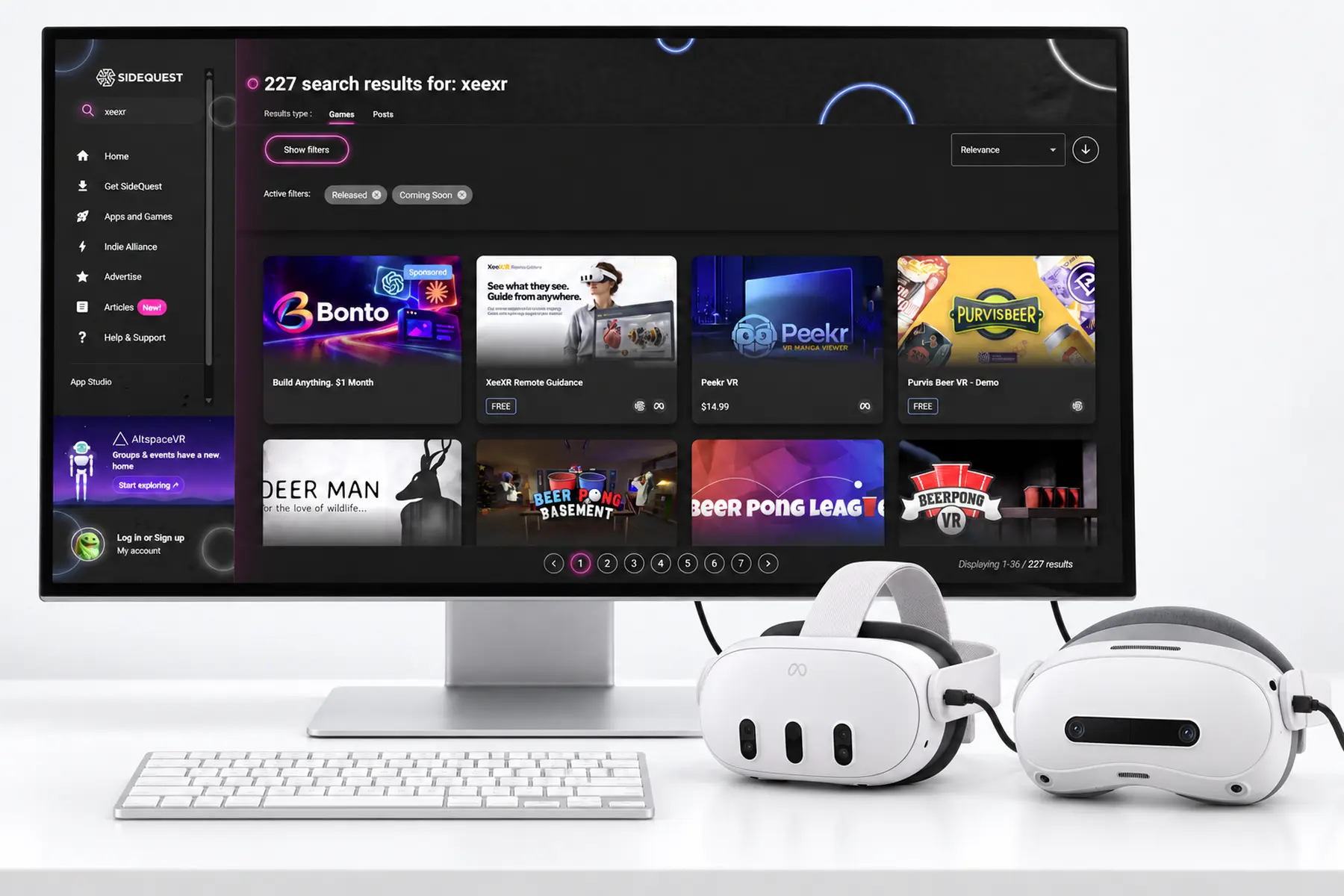
Download and install through SideQuest
Search for XeeXR Remote Guidance on SideQuest and download the APK file for your headset.
Installation uses sideloading: you transfer the app file from your computer to your headset using the SideQuest desktop app. Connect your headset to your computer with a USB cable and use SideQuest to install the APK file.
Developer Mode must be enabled on Meta Quest 3 and Meta Quest 3S. When prompted inside the headset, also allow USB debugging.
Once installation is complete, you can disconnect the headset. Your computer is only needed for this installation step.
XeeXR Remote Guidance on SideQuest
Pair the app yourself and start your first session
Create an account in the GOTOVIAR Portal and start your Free Trial. Then generate a QR code in the portal and scan it using the Remote Guidance app on your headset. This pairs the app with your account.
Start the session on your headset, click ‘Connect’ in the browser dashboard and open your existing VR, AR or MR application. You can start the headset session and connect from the dashboard in either order.
From that moment, a trainer or expert can view the session in their browser, answer questions and provide explanations while the user stays in the XR app. The connection runs over the internet, so you don’t need to be in the same location or on the same network. As the remote guide, you don’t need a second VR headset.
Discover the new QR Pairing
Try it with the XR apps you already have
You don’t need to develop a new training application to add remote guidance. Remote Guidance adds a streaming and communication layer to your existing XR applications, without development work or changes to those apps.
During your Free Trial, experience how you can guide a user remotely within your own training, demonstration or simulation.
Find XeeXR Remote Guidance on SideQuest and set up your first session yourself.