

Introducing the updated GOTOVIAR Portal
The GOTOVIAR Portal is the central environment for managing our services. It currently provides access to XeeXR, which offers two solutions: Remote Guidance and Spatial Support.
The portal now features a refreshed design and a clearer user flow. We have updated the sign-in and registration pages, the dashboard and the navigation. You can also customise the style and colours to suit your preferences.
One environment for both XeeXR solutions
Remote Guidance and Spatial Support each serve a different purpose. You manage the connected apps for both solutions through the same GOTOVIAR Portal.
XeeXR Remote Guidance enables remote guidance within existing VR, AR and MR applications. Through your browser, you can follow the user’s live view from their VR headset and communicate using two-way audio. You and the user can be in different locations and on different networks.
XeeXR Spatial Support provides spatial assistance in the physical world. An expert follows the live camera stream and uses spatial annotations to indicate where the user should look or which component needs attention.
Discover more about Remote Guidance
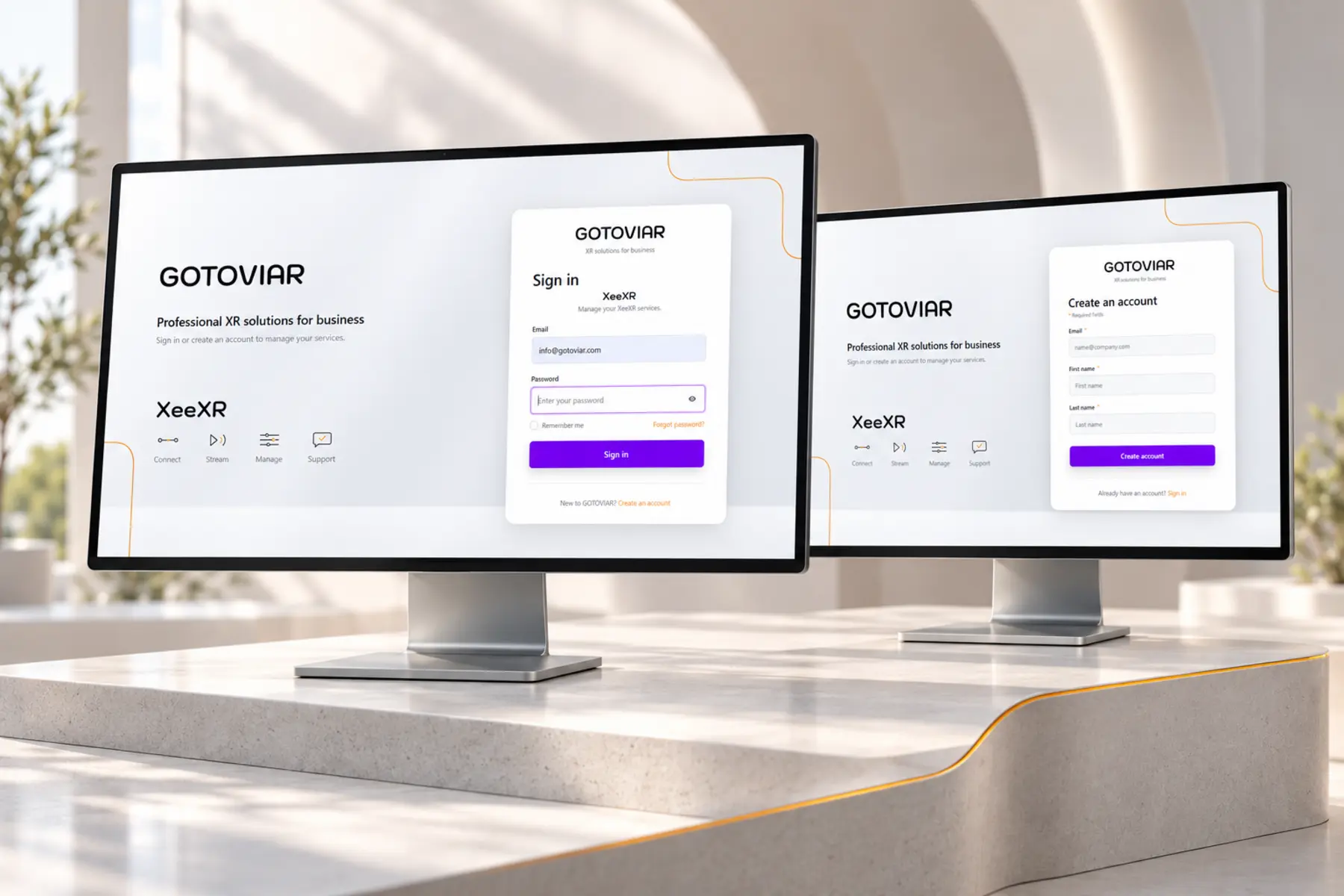
Refreshed sign-in and registration pages
The update starts with how you access the portal. The sign-in and registration pages feature a new design with a clean layout and clearly identifiable fields and buttons.
Existing users sign in with their account. New users can create an account from the same environment.
Your key actions at a glance
After signing in, you arrive at the updated GOTOVIAR Dashboard. Two key actions take centre stage: starting a XeeXR session and connecting a XeeXR app.
The side menu gives you access to your profile and support. Under XeeXR, you will find product information, downloads, your connected apps and the option to start sessions. This gives XeeXR management a clearly defined place within the GOTOVIAR Portal.
A clear overview of your apps and sessions
The Apps page brings your connected XeeXR apps together in one clear overview. Each app has its own card showing its name and details. Here, you can connect new apps and remove existing connections.
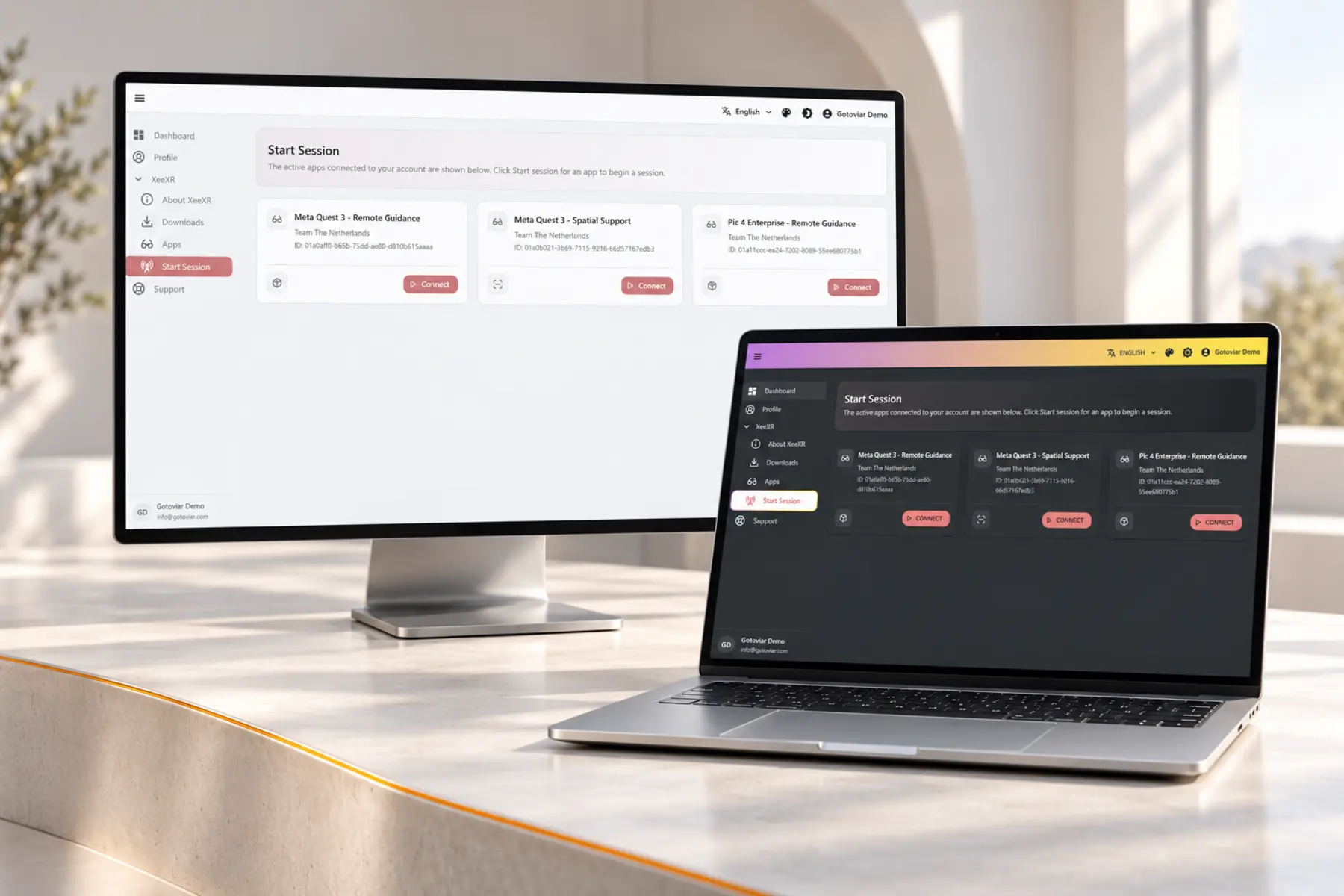
Under Start Session, you select the app you want to start a session with. App management and session connections each have a dedicated place in the navigation.
Customise the look and feel
You can adjust the portal’s style and colours to suit your preferences.
The default light style provides a clean starting point. Choosing a different style or colour scheme gives the same environment a different look and feel. The images accompanying this post show the default appearance alongside an example of a customised style.
Explore the updated GOTOVIAR Portal
The updated portal is now available. Sign in with your existing account to explore the new dashboard, refreshed navigation and customisable interface.