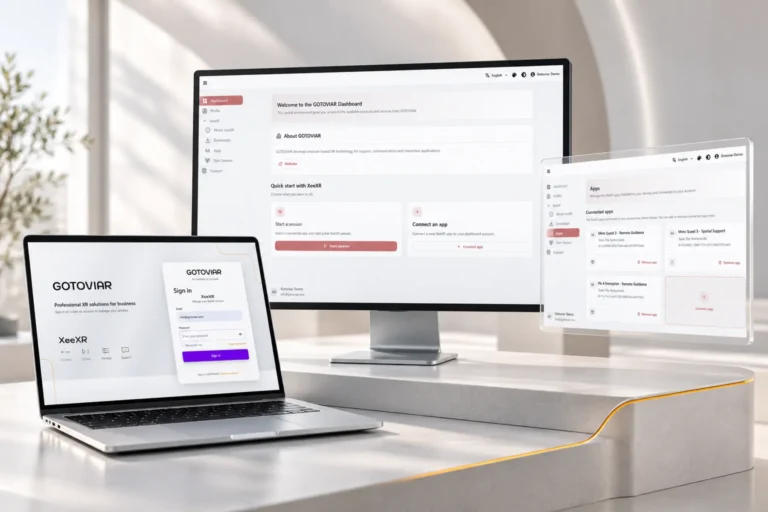

GOTOVIAR introduces QR pairing through your VR headset
Pairing your XeeXR app with the GOTOVIAR Portal now takes a single QR scan. Generate the code in the portal, scan it with your VR headset and your app is paired. This new GOTOVIAR product update puts you in control of pairing and managing your Remote Guidance and Spatial Support apps, even when the headset user is at another location.
Following the redesign of the GOTOVIAR Portal, we’re taking the next step in ease of use: QR pairing for our XeeXR apps. It lets you pair the app on your headset directly with your portal account. Once paired, the app appears in your app overview, ready for you to start XeeXR sessions.
The GOTOVIAR Portal is the central environment for managing our services. Currently, these are XeeXR Remote Guidance and XeeXR Spatial Support. With QR pairing, you can also pair your apps from that same environment. Quick, straightforward and under your control.
Install the corresponding XeeXR app
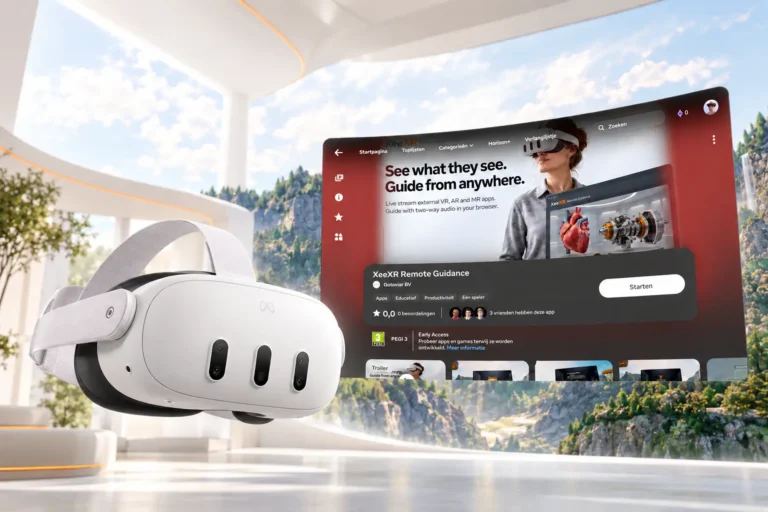
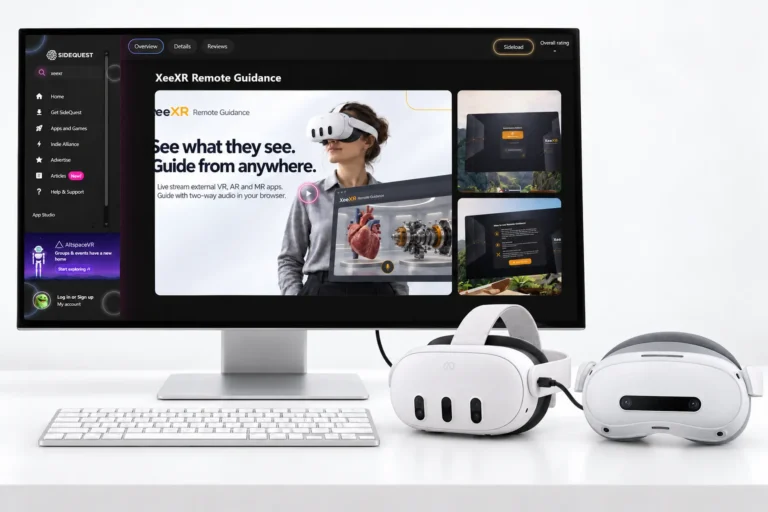
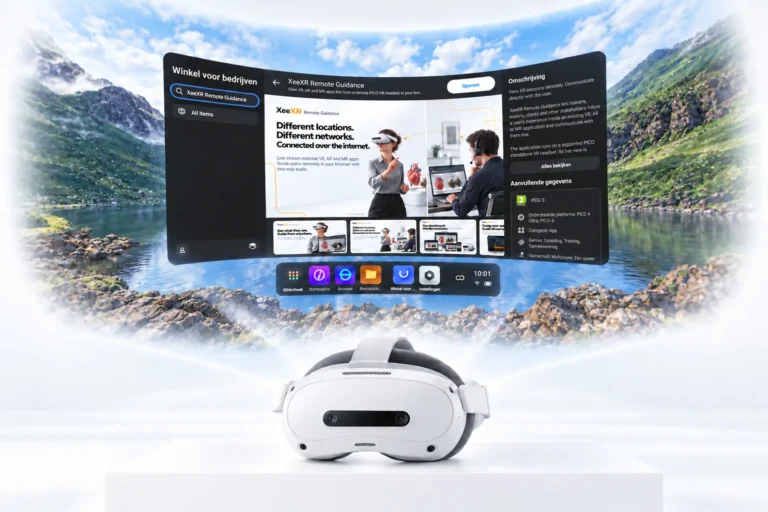
Before you begin, install the appropriate XeeXR app on your VR headset. Remote Guidance is available through the supported app stores and distribution platforms. You can also download the app from the GOTOVIAR Portal or request it from us.
Spatial Support is available on request and is not listed in the app stores. We provide the app for you to install on your headset, after which you can pair it with your portal account using QR pairing.
XeeXR Spatial Support provides spatial assistance in the physical world. An expert follows the live camera stream and uses spatial annotations to indicate where the user should look or which component needs attention.
Discover more about Remote Guidance
Generate a QR code in the GOTOVIAR Portal
Open the portal on your computer or mobile device and go to Apps. Click Connect app and select the service that matches the app on your headset: Remote Guidance or Spatial Support.
Give the app a recognisable name and generate the QR code. This name makes it easy to find the paired app later, particularly when you use multiple headsets for different employees, teams or locations.
The QR code appears on your screen and remains valid for five minutes. Scan it within that time to complete pairing. If the code expires, simply generate a new one.
Scan with your headset to complete pairing
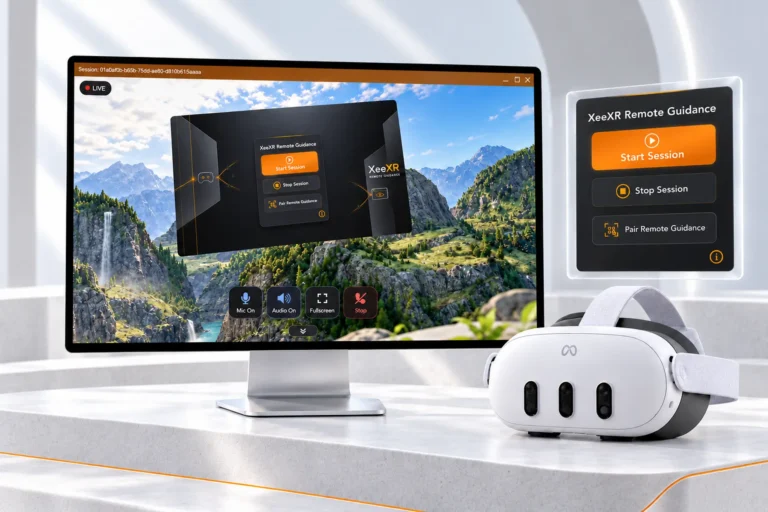
Open the corresponding XeeXR app on your VR headset and select the pairing option. In the video, we demonstrate this with Remote Guidance: select Pair Remote Guidance, followed by Start scanning.
Position the QR code displayed on your computer or mobile screen inside the scanning frame. Once the code is recognised, the app is paired with your account in the GOTOVIAR Portal. You’ll receive immediate confirmation that pairing was successful.
Your app is now paired and ready for you to start XeeXR sessions. There’s no need to scan again for your next session: the pairing remains in place until you remove it.

Pair a headset at another location
Is the VR headset at another location? You can still prepare the pairing from your portal account. Download the QR code from the GOTOVIAR Portal and send it to the headset user.
The user opens the received code on a computer or mobile device and scans it using the XeeXR app on their headset. You generate the code, the user scans it and the app is paired with your account. This lets you pair apps on remote headsets without being there in person.
The QR code remains valid for five minutes from the moment it is generated. Downloading or sharing it does not extend that time. Coordinate with the user beforehand so they are ready to scan. If the code expires, generate a new one and send it over.

See the new QR pairing in action
The video walks you through the entire process. Watch us generate a QR code in the GOTOVIAR Portal, scan it using the Remote Guidance app on the headset and confirm the successful pairing back in the portal.
All your paired apps in one place
Once pairing is confirmed, the app appears under Apps in the GOTOVIAR Portal, with the name you assigned. You can then select the appropriate app in the portal and start a XeeXR session.
Pairing links the app to your account. You start a session whenever you want to use it. You retain an overview of your paired apps and can remove a pairing when it is no longer needed.
Whether you use one headset or manage multiple devices across different locations, you can manage pairings and start sessions from the same GOTOVIAR Portal.
For Remote Guidance and Spatial Support
The new QR pairing supports both XeeXR products. Each serves a different purpose, but their apps are paired and managed in the same way.
With XeeXR Remote Guidance, you guide users remotely within existing VR, AR and MR applications. Through your browser, you see a live stream of what the user sees in their VR headset and communicate using two-way audio. The connection runs over the internet, allowing you and the user to be at different locations and on different networks.
With XeeXR Spatial Support, you provide spatial assistance in the physical world. An expert views the live camera stream and uses spatial annotations to indicate where the user should look or which component needs attention.
QR pairing is available for Meta Quest 3, Meta Quest 3S and PICO 4 Ultra Enterprise.
Explore the update in the GOTOVIAR Portal
The new QR pairing is available in the GOTOVIAR Portal. Log in, open Apps and generate your QR code using Connect app. Scan it with your headset or send it to the user at another location.
Scan. Done. You’re in control.